Day, week, month and list
Last updated
See your bookings by day, week, month or as a list, and open any booking from the calendar.
- Who can do this
- Owners, admins and managers; staff, for their own
- Where to find it
- Calendar
The Calendar is your appointment book. Four views sit at the top: Day, Week, Month and List.
Day
Day shows a column for each person on the schedule, with the day's bookings in time order. A line marks the current time on today. Hours outside your opening hours are shaded, and the page opens at the time you open.
Choose an empty time to add a booking there. See Add a booking at the desk.
Choose a booking to open its panel with the customer, the service, the money and the actions.
Use Today, and the arrows for the previous and next day.
A business that books places such as courts or rooms also sees a Lanes switch to show columns by place instead of by person.
Week
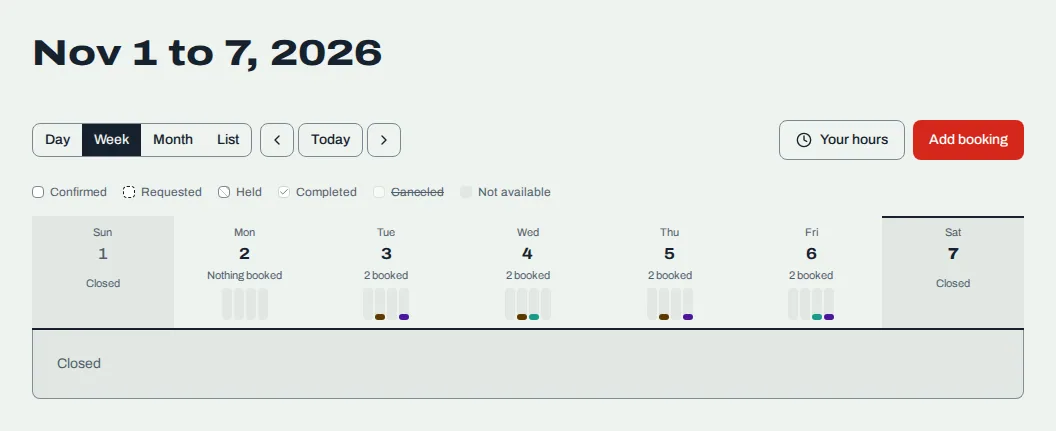
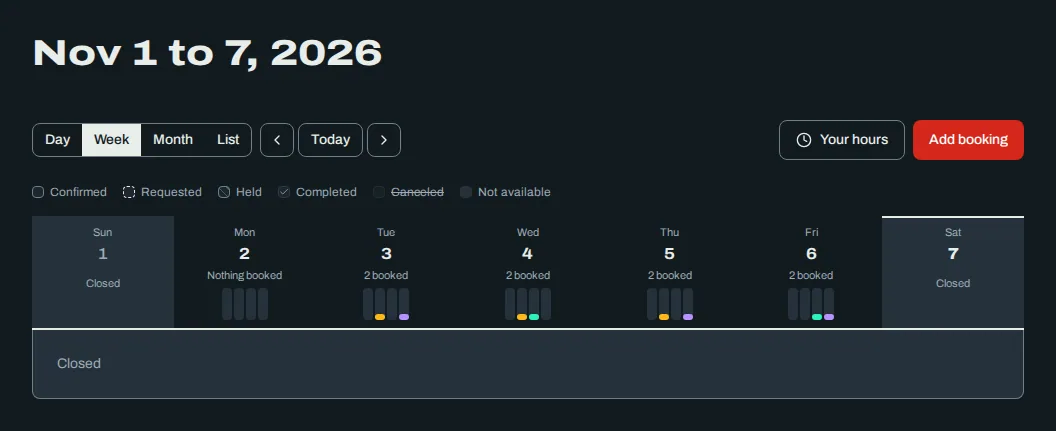
Week shows seven days at once. Under the heading, Week, by person lets you show some people and hide others. A day you are closed is a narrow strip marked "Closed".
Month
Month counts the bookings and classes on each day, with a bar showing how full the day is. Choose a day to open it in Day view. Days you are closed are shaded.
List
List shows Upcoming bookings, soonest first, and the Waitlist. Each upcoming booking shows the customer, service, date and whether it is held or confirmed. Choose one to open its panel. See The waitlist for full classes.
What the shapes mean
A legend sits above Day and Week.
| Look | Meaning |
|---|---|
| Solid | Confirmed |
| Dashed outline | Requested, waiting for you to answer |
| Hatched | Held, waiting on a deposit or a card |
| Check mark | Completed |
| Struck through | Canceled |
| Shaded | Not available: time off, closed days or busy time |
| Dashed shaded | Time off requested |
Move a booking by dragging
In Day view, with a mouse or a pen, drag a confirmed or approved booking to another time. Drag it into another person's column to hand it to them. Drag its bottom edge to change how long it lasts. A box asks you to confirm before anything changes. See Move a booking to another time.
Staff see their own column
Staff see only their own column and their own bookings. Week says "Nothing for you" on a day with nothing of theirs. A staff member who is not on the schedule yet sees a note telling them to ask the owner to add them in Team.
Time off takes someone out of the schedule. See Ask for time off and Approve or decline time off.
Related
Was this article helpful?
No
Still stuck? Contact us.