Your hours and time off
Last updated
See your weekly hours, change them if your business allows it, add time off, and connect your own calendar from one panel.
- Who can do this
- Owners and admins; staff, for their own; managers, for the people who report to them
- Where to find it
- Calendar, then Your hours
Your hours is a panel on the Calendar that holds your own week, your own time off and your calendar connection. It is for you. Everyone on the schedule has it, from staff to the owner.
Open it
Open Calendar and choose Your hours. On a wide screen the panel sits beside the calendar. On a narrow screen it opens over the calendar. Choose Your hours again, or the close button, to put it away.
Someone who is not on the booking schedule does not see the button. They see a note to ask the owner to add them in Team.
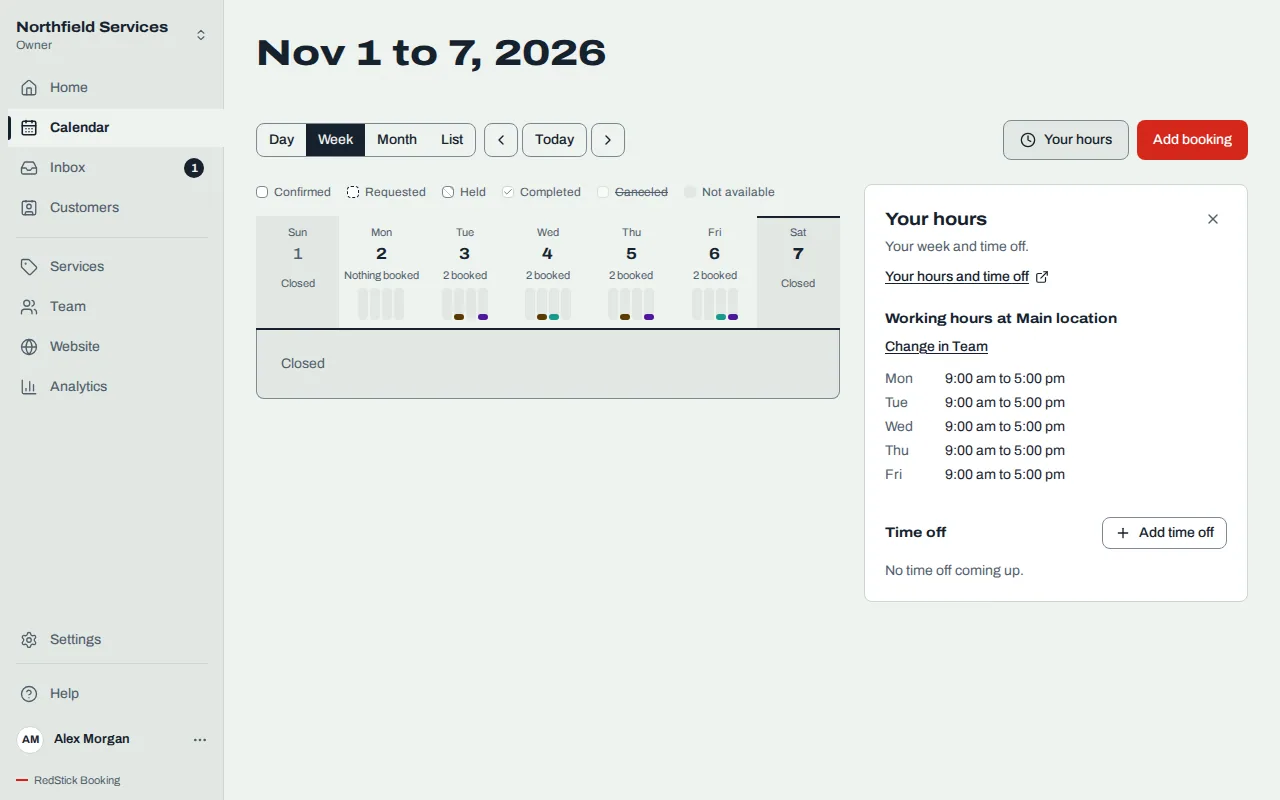
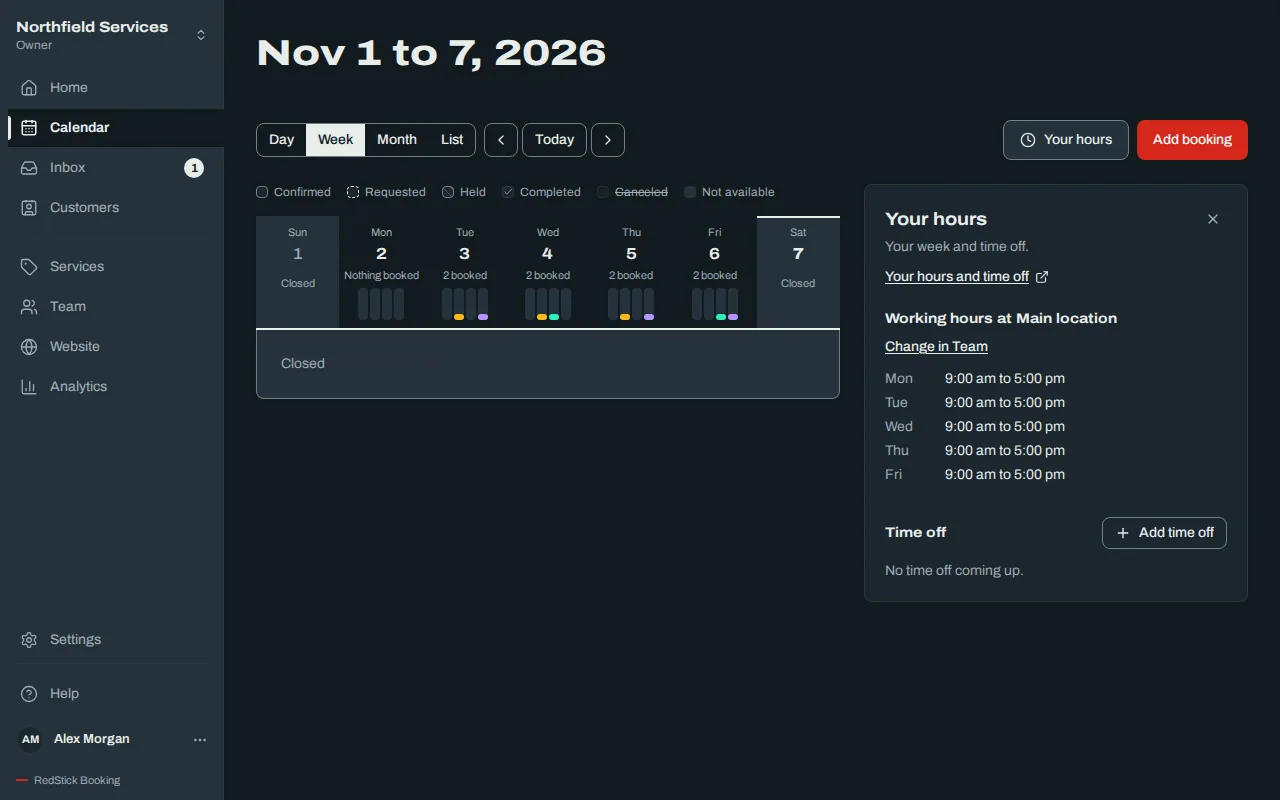
Your working hours
The panel lists the days you work and your times, under "Working hours". Who can change them depends on your role:
Owners and admins see Change in Team, because hours are set on your Team page.
Managers and staff see Change hours when the business allows it. Switch each day on or off, set the start and end, and choose Save changes. The panel says "Hours changed". Choose Keep as it was to discard.
If the business does not allow it, the panel says "To change your hours, ask" the owner.
The panel cannot hold hours with a break in some days, or hours that change on set dates. In that case it says so and tells you to ask the owner to change them in Team.
If you have no hours set at all, the business's opening hours apply. Setting hours for even one day means you work only on that day. The panel shows "Showing the business's hours. Saving sets hours just for you."
Add time off
Choose Add time off.
Pick the First day and Last day.
Leave All day on, or turn it off and set From and Until.
Add a Note if you like. Only your team sees it.
Choose Add time off.
While you have time off, customers cannot book you then, and the calendar shows it shaded.
Time off that needs approval
When the business asks for approval, your time off is sent to your manager, or to an owner or admin. The panel says "Time off changed and sent for approval" and the entry shows "Waiting for", "Approved by" or "Declined by" and a first name. Time off waiting for an answer can be withdrawn with Withdraw request, and a declined one is cleared with Dismiss. Approved time off is removed with Remove, which asks you to confirm and puts you back on the schedule for those hours.
Connect your calendar
If calendar sync is part of your plan, the panel has a section where you connect your own Google Calendar or Outlook Calendar. Your busy times then block you on the booking calendar, and your bookings appear in your calendar.
To ask for time off and see who approves it, see Ask for time off.
Related
Was this article helpful?
No
Still stuck? Contact us.