Invite someone to your team
Last updated
Send an invitation by email, choose their role, and put them on the schedule if customers can book them. The link works for 7 days.
- Who can do this
- Owners and admins
- Where to find it
- Team, then Invite a team member
Invite someone from the Team page. They get an email with a link, set their own password and join your business with the role you chose.
Send the invitation
Open Team.
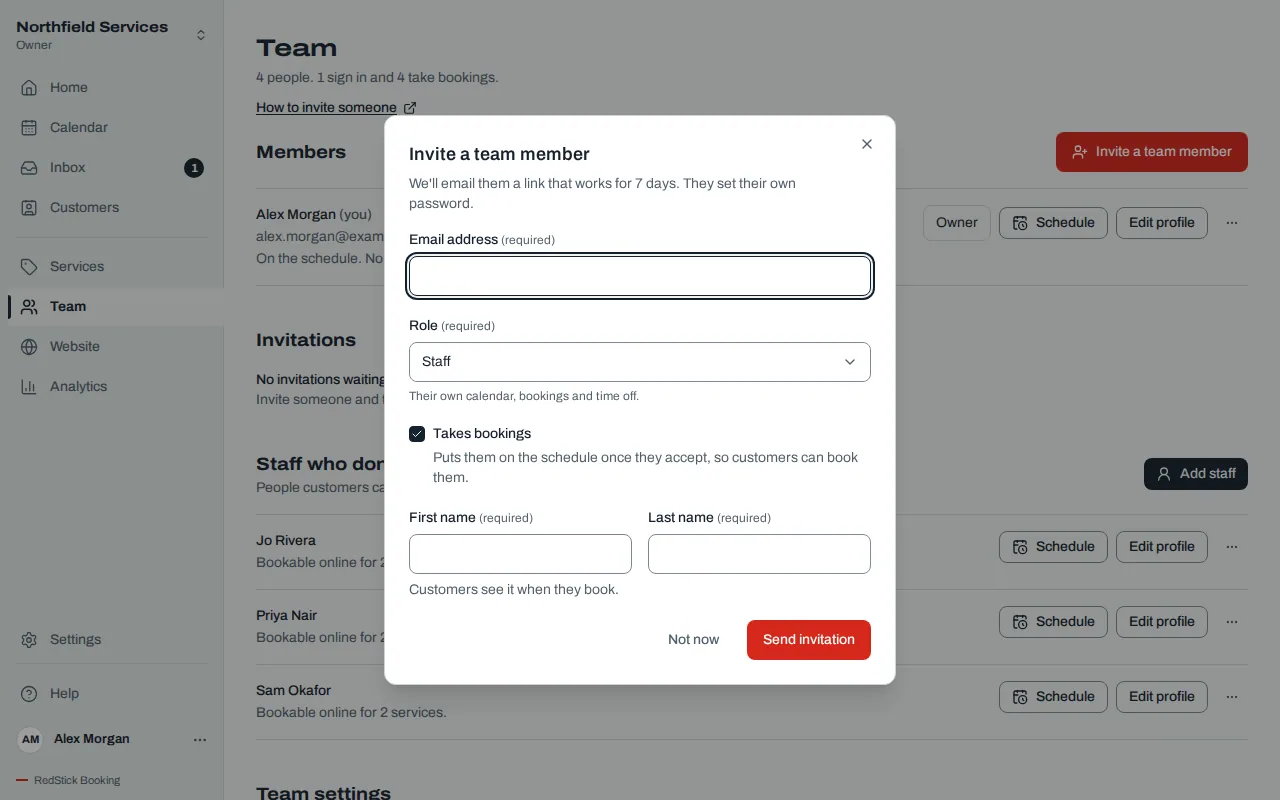
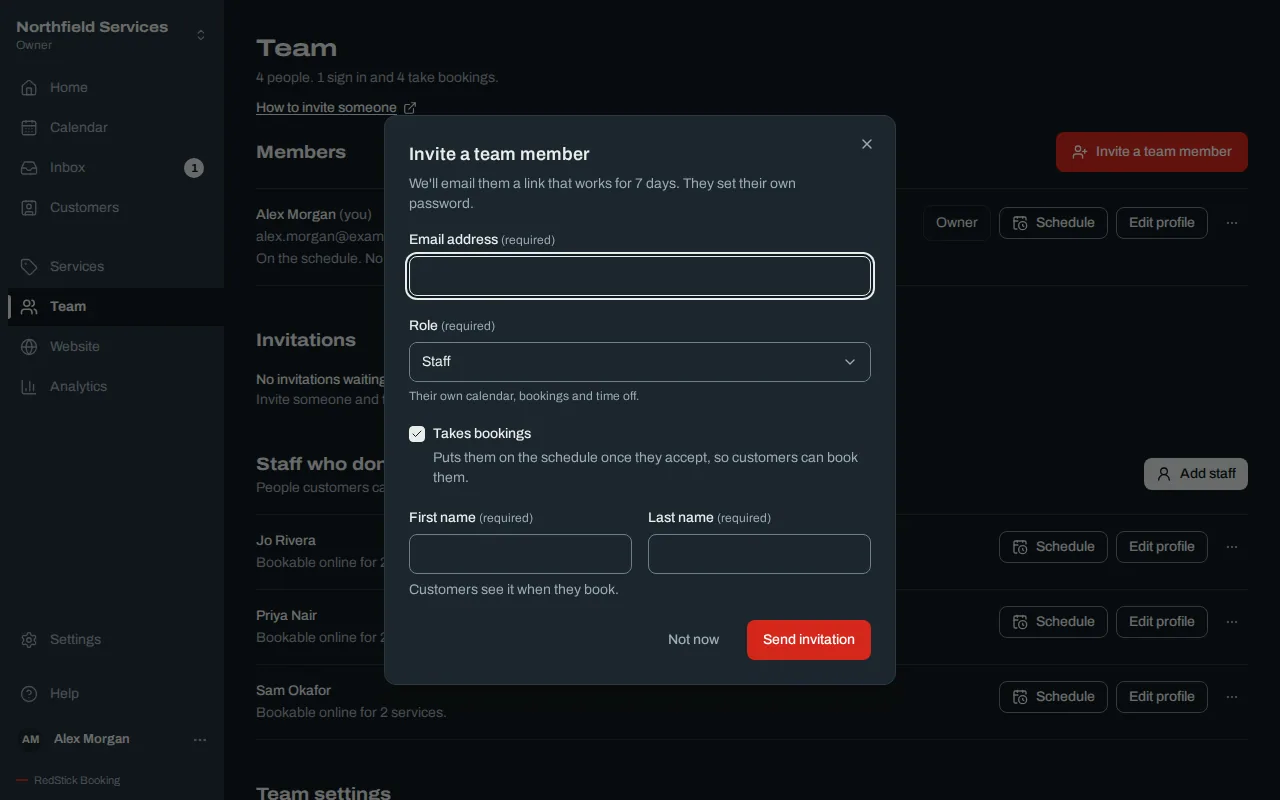
Choose Invite a team member.
Type their email address.
Choose their Role: Admin, Manager or Staff. The line under the role says what it lets them do. See Change a role or remove someone if you are not sure which fits.
Leave Takes bookings selected if customers should be able to book them. It is selected for Staff and cleared for the other roles, and you can change it. When it is selected, type their First name and Last name. Customers see the name when they book.
Choose Send invitation.
You can't invite an owner. To hand the business to someone else, see Change a role or remove someone.
What they do
They get an email that says who invited them, with a Join button for your business. The page they land on asks them to Create an account to join or, if they already have an account, I already have an account. They must use the same email address you invited. If they are signed in as someone else, the page tells them to sign out first.
While you wait
Invitations that haven't been answered are listed under Invitations on the Team page, with the role and the date the link stops working.
Choose Send again to email the link again.
Choose Withdraw, then Withdraw invitation, to cancel it. The link stops working right away, and you can invite the same person again later.
If you invite an address that already has an invitation waiting, you get "There's already an invitation waiting for this address." Send that one again, or withdraw it first.
When they take bookings
If you selected Takes bookings, they go on the schedule when they accept. Until then customers can't book them, and a withdrawn or expired invitation leaves no profile behind. After they join, set their hours: see Set a team member's hours.
Once they join, set their hours and connect their calendar. See Set a team member's hours and See and disconnect team calendars.
Related
Was this article helpful?
No
Still stuck? Contact us.