See what a customer answered
Last updated
Read a customer's answers to your booking questions on their booking, and fill them in yourself if they have not.
- Who can do this
- Owners, admins and managers; staff, for their own
- Where to find it
- Calendar, then open the booking
If a service asks booking questions, the answers sit on the booking so the person doing it can read them before the customer arrives.
Read the answers
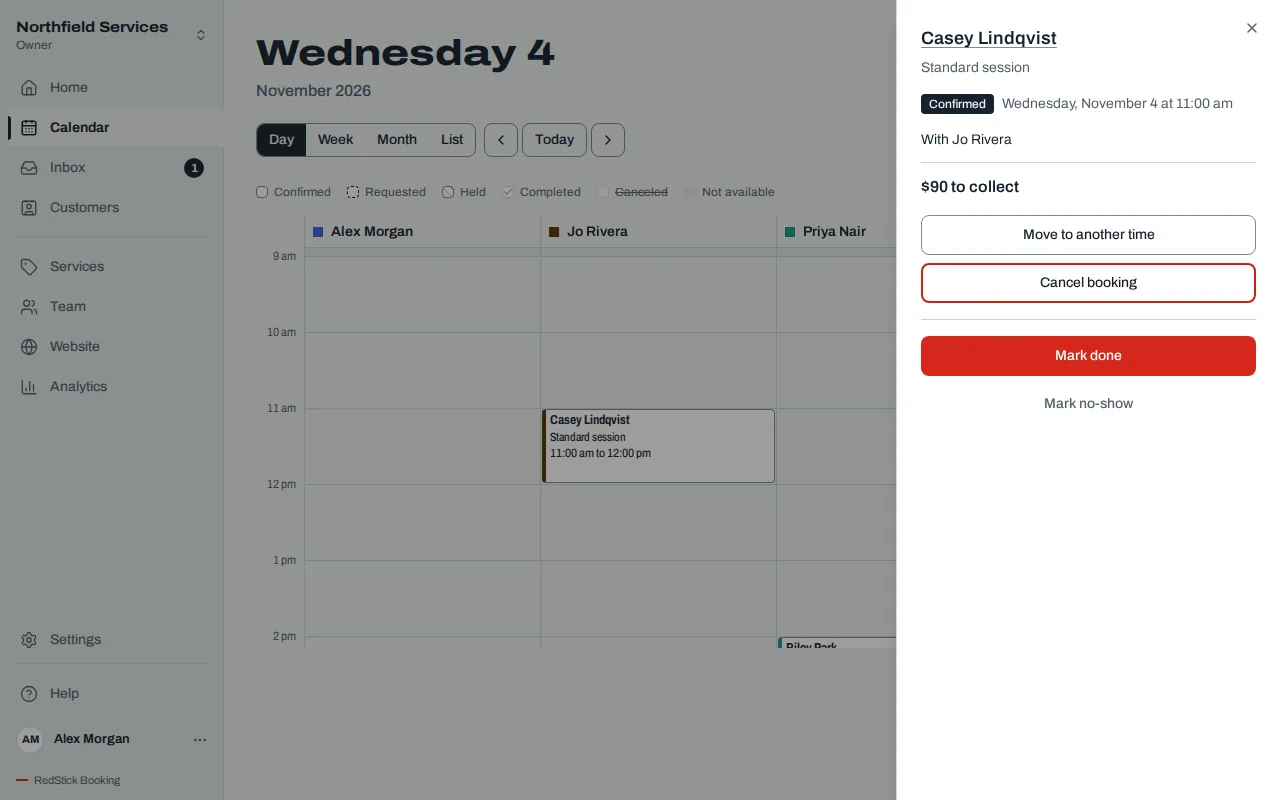
Open Calendar, choose the booking and look under the customer's details. Each question is listed with the answer beside it. A consent says whether it was "Agreed online" or recorded at the desk, and by whom.
When a question is sensitive
A question marked Sensitive is answered like any other. Who can read the answer afterward is limited. Owners, admins, managers and the person on that booking see it. Everyone else sees "Answered. Only owners, admins, managers and the person on the booking can see it." Sensitive answers are never put in an email or a notification.
Answers that are missing
A booking made by phone, or one where the customer has not finished, shows "Questions not answered yet". The panel says "We emailed Dana a link to answer them." The customer can use the link on their own. If they arrive first, choose Answer booking questions and fill them in together. Every required question must be answered and each consent checked, then save. The mark goes away once they are all answered.
Only the person who can change the booking sees Answer booking questions.
Walk-in or phone
When you add a booking, you say how it is coming in. A walk-in is answered with the customer at the desk. A phone booking lets you answer what you can, and the customer gets a link for the rest. A phone booking leaves out the consents, because the customer has not agreed in person. See Add a booking at the desk.
Related
Was this article helpful?
No
Still stuck? Contact us.