Publish your pages
Last updated
Changes save as a draft and reach your live site only when you publish. You can also take a page offline and bring back an earlier version.
- Who can do this
- Owners and admins
- Where to find it
- Website, then Pages
Everything you change in RedStick Studio is saved as a draft as you go. Your live site stays as it is until you publish.
Know what is live
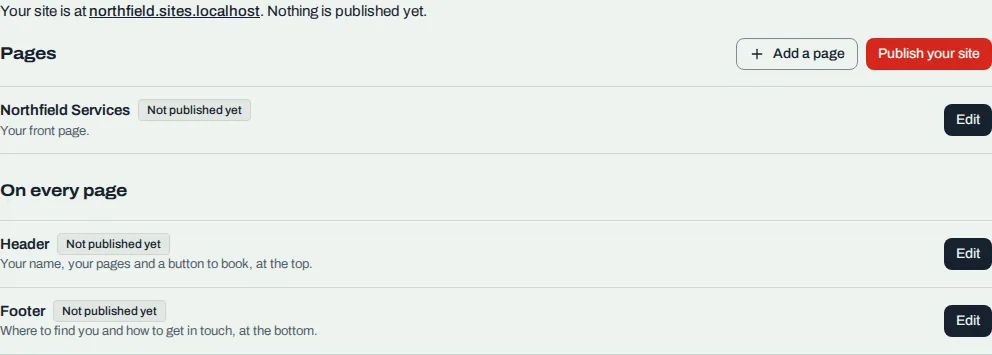
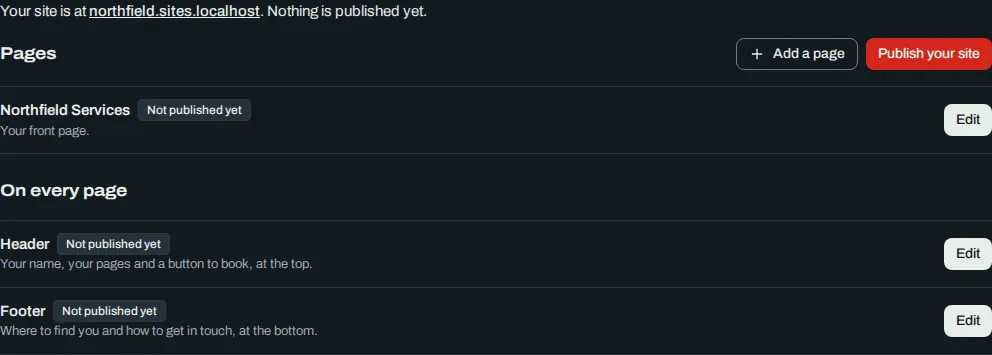
Open Website. The Pages tab shows your site's address, when you last published, and every page with a note about where it stands:
"On your site."
"On your site, with changes you haven't published." The page also wears a Draft changes badge.
"Not published yet."
"Taken offline." The page wears an Offline badge.
Under On every page are your Header and Footer. They publish the same way pages do.
Publish one page
On the Pages tab, choose Edit beside the page.
Choose Publish at the top right.
A box titled "Publish to your site" lists what goes live under Goes live, and anything left out under Not included. If the site check found anything, a line says so. You can still publish.
Choose Publish. The button reads "Publishing", then "Published".
You can't publish until your email address is verified. The button says "Verify your email to publish."
Publish everything at once
On the Pages tab, choose Publish your site the first time, or Publish all changes after that. Select the pages, header, footer and theme you want to go live, and clear anything you want to keep as a draft. Choose the same button again to confirm, or Keep editing to go back.
Look at the live page
In the editor, the Draft and Live buttons switch the preview between what you are editing and what visitors see. Live shows the page as published, and nothing in it can be changed. It is unavailable until the page is on your site.
Go back to an earlier version
In the editor, choose Version history.
Choose View beside a version to look at it. Choose Save this version to keep a checkpoint of the draft, and name it if you like.
To bring one back, choose Restore this version, then Restore version.
Restoring makes that version your draft. The draft you had is saved as a version first, so nothing is lost. Your site doesn't change until you publish.
Take a page offline
On the Pages tab, choose Edit beside the page, then open Pages in the editor's left rail.
Choose the page's actions button, then Take page offline.
Choose Take page offline to confirm, or Keep it live.
The page stops showing and visitors see "page not found". Your draft stays. Publish the page to bring it back.
Delete a page and bring it back
Choose the page's actions button, then Delete page, and choose where visitors should go instead. To bring a deleted page back, open Deleted pages at the bottom of the Pages panel and choose Restore page. Publish it to put it back on your site.
Related
Was this article helpful?
No
Still stuck? Contact us.